TL;DR
5 GHz Wi-Fi is the faster of the two main Wi-Fi bands (the other being 2.4 GHz). On almost every modern router you can connect to it for faster speeds, less interference and a much better experience for streaming, gaming and video calls. Provided you’re within range. Here’s the short version:
- 5G ≠ 5 GHz Wi-Fi. 5G is mobile/cellular technology (the next step after 4G). 5 GHz is a Wi-Fi frequency band on your home router. Two completely different things, often confused.
- 5 GHz Wi-Fi is faster but shorter range. Great in the same room, struggles through brick walls or across the house.
- 2.4 GHz is slower but reaches further. Better for devices at the back of the house or in the garage.
- Most newer routers run both bands. If you only see one network name in your phone’s Wi-Fi list, the router is doing “band steering” — automatically deciding which band to put each device on.
- To connect specifically to 5 GHz, look for a network name (SSID) ending in “-5G” or “-5GHz”. If you don’t see one, log into your router admin page and split the bands into separate SSIDs.
5G vs 5 GHz — clearing up the confusion
These two terms get mixed up all the time, including in shop displays and router packaging. Quick definitions:
- 5G is the fifth generation of mobile cellular technology. It runs on your phone’s SIM card and is used by carriers like Telstra, Optus and Vodafone. You don’t get 5G from a home Wi-Fi router (unless that router has a SIM card in it, like a 5G home wireless modem).
- 5 GHz Wi-Fi is one of the two main frequency bands that home Wi-Fi uses, the other being 2.4 GHz. Both bands are part of standard Wi-Fi (the same Wi-Fi that’s been in homes since the 2000s).
If you’ve bought a “5G Wi-Fi” router, in 99% of cases you’ve actually bought a regular dual-band router that supports the 5 GHz Wi-Fi band. Calling it “5G” is marketing shorthand and a bit misleading. Real 5G home internet (the kind that uses a mobile network) is sold as “5G home wireless” or “5G home internet”, and we’ve got a full guide on 5G home internet in Australia if that’s what you actually want.
When to use 5 GHz Wi-Fi vs 2.4 GHz
Both bands have real strengths. The right one depends on the device and where it sits in the house:
| 2.4 GHz Wi-Fi | 5 GHz Wi-Fi | |
|---|---|---|
| Top speed | ~150 Mbps (Wi-Fi 4) up to ~600 Mbps (Wi-Fi 6) | 1-2 Gbps (Wi-Fi 5) up to 4.8 Gbps (Wi-Fi 6) |
| Range | Long — through 2-3 walls easily | Shorter — best within one or two walls |
| Congestion | High (every old Wi-Fi network, microwave, baby monitor, Bluetooth uses 2.4 GHz) | Low (more channels available, fewer devices) |
| Best for | Smart home devices, garden cameras, devices at the back of the house | Phones, laptops, smart TVs, gaming consoles, anything streaming or video-calling |
| Wall penetration | Good | Average |
Quick rule of thumb: if it’s in the same room or one room away from the router, connect it to 5 GHz. If it’s three or more rooms away, you’ll get a more reliable connection on 2.4 GHz even though the headline speed is lower.

How to know if your device supports 5 GHz Wi-Fi
Almost every phone, laptop and tablet sold from about 2015 onwards supports both bands. Older devices, cheap budget tablets, and many smart home gadgets (smart plugs, garage door controllers, basic IP cameras) are often 2.4 GHz only.
Quick checks:
- iPhone: every iPhone from iPhone 5 onwards (2012) supports both 2.4 and 5 GHz.
- Android: depends on the model. Most phones from Samsung Galaxy S6 onwards (2015), most Google Pixel phones, and any Android device launched after about 2017 supports both. Cheap budget Android phones sold under $250 sometimes still ship 2.4 GHz only — check the spec sheet.
- Laptops: any laptop sold from 2015 onwards is almost certainly dual-band.
- Smart TVs: most TVs from 2017 onwards support both. Older smart TVs and some entry-level models are 2.4 GHz only.
- Smart home devices: read the spec sheet before buying. Many older or cheaper smart plugs, light bulbs and cameras are 2.4 GHz only — and won’t see a 5 GHz network at all.
How to connect to 5 GHz Wi-Fi on different devices
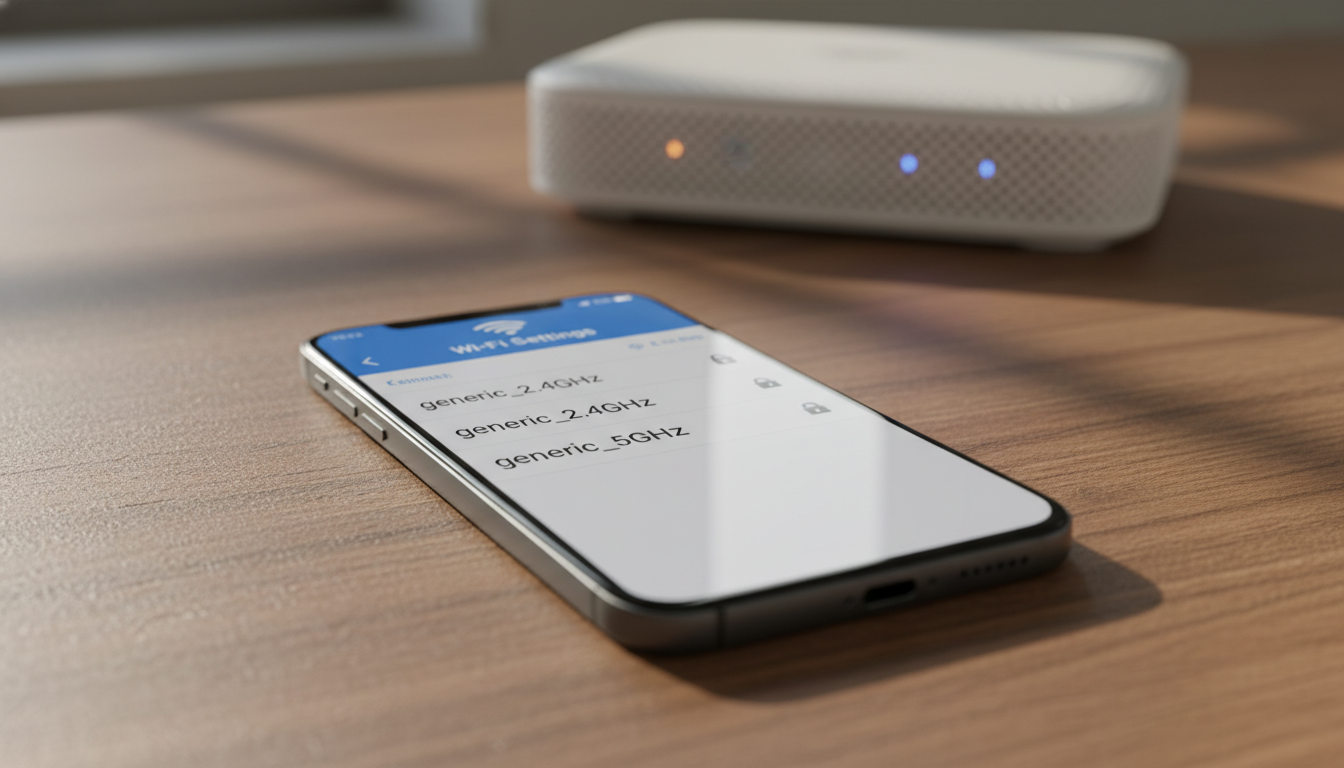
The process is identical to connecting to any Wi-Fi network. You just need to pick the network whose name (SSID) is the 5 GHz one. Most dual-band routers, if you split the bands into separate networks, will use names like:
Optus_ABCD(2.4 GHz) andOptus_ABCD-5GorOptus_ABCD_5GHz(5 GHz)TelstraXYZandTelstraXYZ-5GMyHomeWiFiandMyHomeWiFi-5G
If your router only shows one network name, it’s doing band steering automatically (more on that below).
On iPhone
Settings → Wi-Fi → pick the network with -5G or _5GHz in the name. Connect with the same password as the 2.4 GHz network.
On Android
Settings → Network & Internet → Wi-Fi → tap the 5 GHz network. On Samsung phones it’s Settings → Connections → Wi-Fi.
On Windows 10/11
Click the Wi-Fi icon in the system tray → pick the 5 GHz network from the list.
On Mac
Click the Wi-Fi icon in the menu bar → pick the 5 GHz network. macOS sorts networks by signal strength so the 5 GHz one usually appears at the top when you’re near the router.
On smart TVs
Settings → Network → Wi-Fi (the exact path varies by brand. Samsung, LG, Sony, Hisense each call it something slightly different). Pick the 5 GHz network.
On gaming consoles
- PlayStation 5: Settings → Network → Settings → Set Up Internet Connection → pick 5 GHz network
- Xbox Series X/S: Settings → General → Network settings → Set up wireless network
- Nintendo Switch: System Settings → Internet → Internet Settings
Why your router might only show one network
This is the most common reason people can’t find a “5 GHz” network in their Wi-Fi list: many modern routers (especially mesh systems like Google Nest WiFi, Eero, ASUS AiMesh, TP-Link Deco) use band steering by default.
Band steering means the router broadcasts a single network name and decides automatically which band to put each device on, based on signal strength. The router will move a device that’s close to it onto 5 GHz, and a device that’s further away onto 2.4 GHz, without the user doing anything.
This is convenient, but it has two downsides:
- You don’t get to choose. Some devices have buggy band steering and end up stuck on 2.4 GHz when 5 GHz would be much faster.
- You can’t troubleshoot. If you suspect a device is on the wrong band, you can’t easily test by switching it.
To get explicit control, you can split the bands into separate network names:
- Log into your router admin page (usually
192.168.0.1,192.168.1.1or via the provider’s app) - Find Wireless or Wi-Fi settings
- Look for an option like “Smart Connect”, “Band Steering” or “Single SSID” — turn it OFF
- You’ll now see separate 2.4 GHz and 5 GHz sections. Give them distinct names (e.g.
MyHomeandMyHome-5G) - Save and reconnect your devices to whichever band you want
Troubleshooting common 5 GHz Wi-Fi problems
“I don’t see a 5 GHz network anywhere.” Three possible reasons: (1) your router has band steering on so it only broadcasts one SSID. Fix per the section above; (2) your device doesn’t support 5 GHz (check the spec sheet); (3) your router is older than ~2010 and is 2.4 GHz only.
“5 GHz connects but drops out as I walk around the house.” Normal, 5 GHz has shorter range. If you need 5 GHz speeds throughout the house, you need either Wi-Fi extenders, a mesh system, or wired access points in different rooms.
“5 GHz is slower than 2.4 GHz on my device.” Almost always signal strength. Move closer to the router and retest. If you’re more than ~10 metres or two walls away, 2.4 GHz often beats 5 GHz on real world throughput because the signal is so much stronger.
“Some of my smart home devices won’t connect to my Wi-Fi anymore.” Most smart plugs, bulbs and budget cameras are 2.4 GHz only. If you split the bands into separate SSIDs, make sure the 2.4 GHz network keeps the original name so smart devices that already know it can reconnect. If they still won’t connect, factory-reset the smart device and pair it again over 2.4 GHz.
“My phone keeps switching between 2.4 GHz and 5 GHz.” Annoying. Either turn off band steering and connect manually to whichever band you prefer, or update both your phone and router firmware. Band steering bugs are common and usually fixed in firmware updates.
What about 6 GHz (Wi-Fi 6E and Wi-Fi 7)?
Wi-Fi 6E (released 2021) and Wi-Fi 7 (2024) add a third band: 6 GHz. It’s even faster than 5 GHz and even shorter range. As of 2026 in Australia, 6 GHz Wi-Fi is available on most new flagship routers and any phone or laptop bought in the last 2-3 years. To use it, both your router and device need to support Wi-Fi 6E or Wi-Fi 7. Most Wi-Fi 5 (802.11ac) and Wi-Fi 6 (802.11ax) hardware does not.
If you’ve got Wi-Fi 6E or 7 gear, the connection process is the same as for 5 GHz. Pick the 6 GHz SSID from the network list. The same band-steering logic also applies, often across three bands now (2.4 / 5 / 6 GHz).
Test what you’re actually getting
The fastest way to tell if you’re on the right band is to run a speed test on the device after connecting. Use our speed test tool. It’ll show download, upload and ping on whichever network the device is currently connected to.
If you’re getting noticeably less than your plan’s speed on 5 GHz but more on 2.4 GHz, the device’s distance from the router is the cause. The fix is closer placement, a Wi-Fi extender, or a mesh system.
Related reading
- Slow Wi-Fi at home? 10 fixes that actually work — covers band steering, channel interference and placement in detail
- Wi-Fi range extender vs mesh network — if 5 GHz only covers part of your house
- 5G internet in Australia — for the actually-5G-cellular topic
- Secure your home Wi-Fi: 10 easy wins — once everything’s connected, lock it down
FAQ
Is 5 GHz Wi-Fi the same as 5G?
No. 5G is the fifth generation of mobile cellular technology (used by Telstra, Optus, Vodafone). 5 GHz is a Wi-Fi frequency band used by home routers since the early 2010s. Two completely different things. They just share an unfortunate name overlap.
Is 5 GHz Wi-Fi always faster than 2.4 GHz?
Not always. 5 GHz has higher headline speeds but shorter range. If you’re far from the router, 2.4 GHz often gives faster real world throughput because the signal strength is so much better. Within 5-10 metres and a wall or two, 5 GHz wins; further than that, 2.4 GHz usually wins.
Can I use 5 GHz and 2.4 GHz at the same time?
Yes. Every dual-band router broadcasts both at the same time, and different devices can use different bands. You’d typically put streaming and gaming devices on 5 GHz and smart home gear and devices in distant rooms on 2.4 GHz.
How do I tell if my router supports 5 GHz Wi-Fi?
Look at the back or bottom of the router. Most have a sticker listing the supported standards. “Wi-Fi 5 (802.11ac)”, “Wi-Fi 6 (802.11ax)” or “Wi-Fi 6E” all mean it supports 5 GHz. If it only says “Wi-Fi 4 (802.11n)” or older, it might be 2.4 GHz only. Routers older than about 2012 are usually 2.4 GHz only.
Why does my phone only show one Wi-Fi network when my router broadcasts both bands?
The router is using band steering. It broadcasts a single network name and silently decides which band to put each device on. To see both bands separately, log into the router admin page and turn off “Smart Connect” or “Band Steering”, then give the two networks different SSIDs.
Will all my devices work on 5 GHz Wi-Fi?
Most modern phones, laptops and TVs do, but many smart home devices (smart plugs, bulbs, budget cameras) are 2.4 GHz only. Check the spec sheet for each device before assuming. If you split the bands into separate SSIDs, keep the existing name on the 2.4 GHz band so older smart devices can reconnect without being re-paired.
Does 5 GHz Wi-Fi go through walls?
It does, but with more attenuation than 2.4 GHz. A single internal wall is fine. Two internal walls or one external brick wall and you’ll see a significant signal drop. Three walls and 5 GHz becomes unreliable in most homes. That’s where 2.4 GHz, extenders or mesh come in.
Is there a downside to using 5 GHz Wi-Fi?
Three: range is shorter, wall penetration is weaker, and battery use can be slightly higher on some older devices. For most modern phones and laptops the battery difference is negligible. For a phone sitting in a back room that’s marginal on 5 GHz, the device can also drain faster as it constantly searches for a stronger signal.