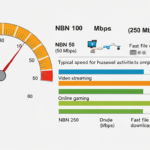
“My internet is slow” is almost always actually “my Wi-Fi is slow”. The broadband connection coming into the house is usually fine — what’s holding you back is the wireless signal between the router and your devices. The good news is that Wi-Fi problems are mostly fixable without changing your internet plan. Here are five simple ways to get faster Wi-Fi at home.
Before you try these tips: test first
Run a speed test plugged into the modem with an Ethernet cable, then run it again over Wi-Fi from where you’re having issues. If the wired result is close to your plan speed but Wi-Fi is much slower, you’ve got a Wi-Fi problem (not a broadband problem) and these tips will help. Our guide to testing your broadband speed walks through it.
1. Move your router to a better spot
This is the single biggest thing you can do for free. Wi-Fi signal weakens fast as it passes through walls, especially brick and concrete. The router should be:
- Central in the house — not stuck in a corner or against an outside wall
- Elevated — on a shelf or sideboard, not on the floor
- Out in the open — not inside a TV cabinet or behind books
- Away from microwaves, cordless phones and other electronics
If your router is hidden in an entertainment unit, just moving it onto the top of the unit can boost your speeds in the rest of the house significantly.
2. Use the 5GHz band for nearby devices
Modern Wi-Fi routers broadcast on two frequencies: 2.4GHz and 5GHz. They have different strengths:
- 2.4GHz — slower (up to ~150Mbps in practice) but travels further and goes through walls better. Use for far-away devices.
- 5GHz — faster (up to ~700Mbps in practice) but shorter range. Use for devices in the same room or nearby.
Most modern phones and laptops connect to whichever is stronger automatically. Older devices may only support 2.4GHz. If your router lets you split the two bands into separate Wi-Fi network names, you can manually connect critical devices (TV, gaming console, work laptop) to the 5GHz network for faster speeds.
3. Upgrade your router (if it’s more than 4–5 years old)
Routers wear out and fall behind. A 5+ year old router is probably running Wi-Fi 5 (802.11ac) or older, has weaker antennas than modern routers, and may have known security issues.
A modern Wi-Fi 6 router ($150–$300 from TP-Link, ASUS or Netgear) will outperform almost any bundled modem your ISP gave you 5 years ago. You’ll especially notice the improvement if you have lots of connected devices — Wi-Fi 6 is much better at handling many devices simultaneously.
If you have a large house or multiple stories, a mesh Wi-Fi system (Google Nest Wifi Pro, NETGEAR Orbi, TP-Link Deco) is usually a better choice than a single powerful router. See our range extender vs mesh guide.
4. Reduce interference from neighbours
In apartment buildings and dense suburbs, lots of neighbouring Wi-Fi networks fight for the same airwaves. If you’re stuck on a crowded channel, your speed suffers even if your own router is brand new.
Most modern routers automatically pick the least crowded channel. If yours doesn’t, log into your router admin panel and:
- For 2.4GHz, manually try channels 1, 6, or 11 (these don’t overlap with each other)
- For 5GHz, choose any channel — there are many more available and less congestion
The 5GHz band has dramatically less neighbour interference, which is another reason to use it where you can.
5. Use Ethernet for critical devices
Wi-Fi is convenient, but Ethernet is faster, more reliable, and has lower latency. For devices that don’t move:
- Plug your smart TV directly into the modem with an Ethernet cable — much smoother 4K streaming
- Wire your gaming console for lower ping in online matches
- Run a cable to your work desk if you’re on Zoom calls every day
You don’t even need a long cable run — a 5m flat Ethernet cable along the skirting board takes 10 minutes to install and can transform performance.
Bonus: restart your router every few months
Routers run 24/7 and accumulate small issues over time. A simple power cycle (unplug, wait 60 seconds, plug back in) fixes a surprising number of speed and dropout issues. Set yourself a reminder every 2–3 months.
What if none of this fixes it?
If you’ve tried all the above and Wi-Fi is still slow, your broadband itself might be the problem. Check whether your NBN plan is fast enough for your household (see our speed guide), and whether your provider has good evening speeds. Sometimes switching providers is the fix.
Wi-Fi speed FAQ
Why is my Wi-Fi slower on my phone than my laptop?
Phones have smaller, weaker antennas than laptops. They also tend to roam around more, which can cause them to connect to a more distant 2.4GHz signal even when 5GHz is available nearby. This is normal.
Should I get a Wi-Fi 7 router instead of Wi-Fi 6?
Only if you’re future-proofing or you have many devices that already support Wi-Fi 7. Most current devices (phones, laptops, TVs) are Wi-Fi 6 or Wi-Fi 6E. Wi-Fi 7 routers are noticeably more expensive and the real-world benefit is small for most households today.
Why does my Wi-Fi slow down in the evening?
That’s usually broadband congestion, not Wi-Fi. Your provider’s network slows down during peak hours. Check by running a speed test over Ethernet during the slow time — if Ethernet is also slow, the issue is your broadband.
Will a Wi-Fi extender double my speed?
No. A range extender increases coverage but doesn’t increase speed. Devices connected through the extender often get half the speed of devices connected directly to the main router. A mesh Wi-Fi system is generally better than an extender.
Compare NBN plans
If your Wi-Fi is fast but your broadband plan can’t keep up, it might be time to upgrade. Our best NBN plans page highlights plans with strong evening speeds.