Last updated: 21 August 2026
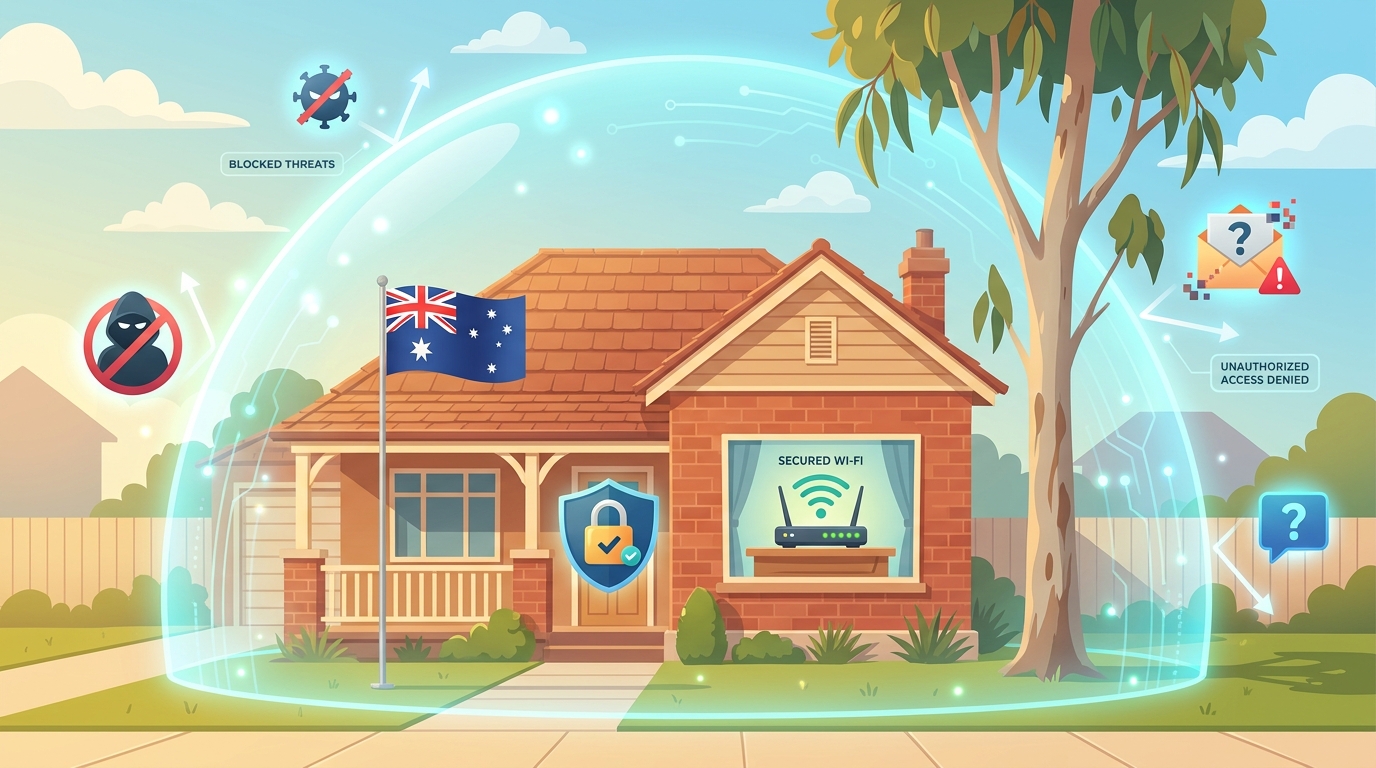
After the Optus, Medibank and a string of other Australian data breaches in 2022-2024, plus the ongoing risk of smart-home devices being hijacked, securing your home internet has gone from a nice-to-have to a basic adult skill. The good news: the high-impact wins are simple. Ten practical Wi-Fi security upgrades you can finish in an afternoon, ranked roughly by how much real protection they add.
The strong-vs-weak Wi-Fi setup at a glance
| Weak setup | Strong setup | |
|---|---|---|
| Wi-Fi password | Default, short, or shared with everyone who’s ever visited | 14+ characters, mix of letters/numbers/symbols, unique to your house |
| Encryption | WEP or unsecured | WPA3 (or WPA2 if router is older) |
| Router admin login | “admin / admin” default | Strong password different from your Wi-Fi password |
| Firmware | Not updated since installation | Auto-updates enabled, current firmware |
| Smart-home devices | On the same network as your laptop and phone | On a separate guest or IoT network |
| WPS | Enabled (vulnerable to brute force) | Disabled |
| Two-factor auth on critical accounts | Just a password | 2FA via app or hardware key on banking, email, etc. |
1. Use a strong, unique Wi-Fi password
The single biggest win. A weak password (under 10 characters, dictionary words, your address) can be cracked by a neighbour with downloaded software in minutes. Use 14+ characters, mix uppercase, lowercase, numbers and symbols. The easy formula: pick three random words and add numbers, “PossumKayakOrange2026!” is both memorable and very hard to crack.
Change your password through your router’s admin app or by visiting your router’s admin page (usually 192.168.1.1 or as printed on the router itself). When you change it, every connected device will need to reconnect with the new password.
2. Switch to WPA3 encryption if your router supports it
Encryption is what makes your password useful. WPA3 is the current standard (introduced 2018), WPA2 is the old but still OK standard, and anything older (WPA, WEP) is broken and should not be used. Most Wi-Fi 6 and newer routers support WPA3 by default. In your router’s admin page look for “Wireless security” and switch to “WPA3” or “WPA2/WPA3 Mixed” if your devices are mixed vintage.
If you see WEP or no security option, your router is over a decade old. Replace it. Modern Wi-Fi 6 routers start at around $150 and the security upgrade alone is worth it.
3. Change the router admin login (not just the Wi-Fi password)
This is the one most people miss. Your Wi-Fi password is what devices use to connect. The router admin password is what YOU use to log into the router’s settings page. They’re separate things, and most routers ship with the admin login as “admin / admin” or similar defaults that are public knowledge.
If anyone gets onto your Wi-Fi (a tradie, a houseguest, a brief password slip), they can browse to your router’s admin page and log in with the default credentials, then change anything they want, including locking you out. Change the admin password to something different from your Wi-Fi password, in your router’s settings.
4. Run a separate Wi-Fi network for guests and smart home devices
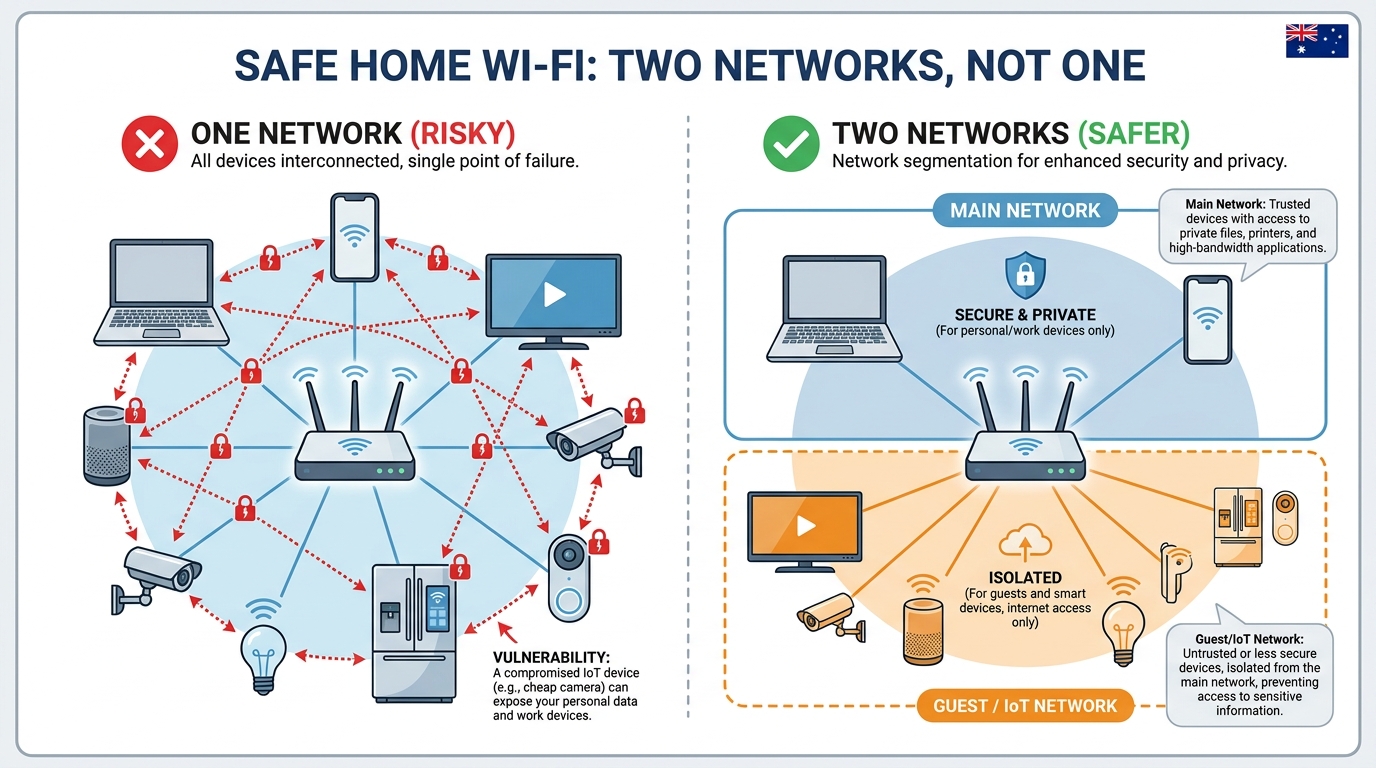
This is the highest leverage move that most households don’t make. Modern routers can broadcast two or three Wi-Fi networks at once. Your main network for your laptop, phone and personal devices; a separate “guest” or “IoT” network for everything else.
Why it matters: smart-home gadgets (smart speakers, doorbell cameras, smart TVs, robotic vacuums, light bulbs, even some fridges) are notoriously insecure. They rarely receive security updates after their first year or two on the market, and many phone home to manufacturer servers in ways you can’t see. If one of them gets compromised on your main network, it can be used to attack your laptop or phone. Putting them on a separate network isolates them, even if one gets hacked, it can’t reach your personal data.
How to set it up: in your router’s admin page, find “Guest network” or “IoT network” and enable it with a different password. Reconnect your smart-home devices to that network instead of the main one. Same for visitors. Give them the guest network password and you never have to share your main one.
5. Change default passwords on smart-home devices
Every Wi-Fi-connected device, security cameras, smart speakers, doorbells, baby monitors, even printers, ships with a default password that’s often the same for every unit of that model. Default passwords are searchable on the open internet and the first thing attackers try.
Set up each new smart device through its companion app, change the default password during setup, enable two-factor auth on the device’s cloud account where available. The five minutes per device is the difference between secure and exposed.
6. Keep your router’s firmware up to date
Router manufacturers release firmware updates that patch security holes. Most modern routers auto-update, but older ones don’t. Log into your router’s admin page, check the firmware version, and either enable auto-updates or install any updates manually. If your router is so old its manufacturer doesn’t release updates anymore (typically after 5-7 years), it’s time to replace it.
For step-by-step guidance see our router firmware update guide.
7. Disable WPS
Wi-Fi Protected Setup (WPS) is the “press the button on the router to add a device” feature. Convenient, but the original WPS pin protocol is famously weak. There are well-known attacks that can brute-force the 8-digit pin in hours. Most security experts recommend disabling WPS entirely.
Look in your router’s admin page for a “WPS” toggle and switch it off. You’ll add new devices the regular way by typing in the Wi-Fi password. Slightly more effort but materially safer.
8. Enable two-factor authentication on critical accounts
Securing your Wi-Fi only helps if your accounts behind it are also protected. Two-factor authentication (2FA) means even if someone steals your password, they still need a code from your phone or a hardware key to log in. Add 2FA on:
- Your email account (the password-reset gateway for everything else)
- Banking and finance apps
- Your phone provider account (SIM-swap attacks bypass SMS 2FA)
- Your router’s manufacturer account (TP-Link, Asus, etc. cloud accounts)
- Apple ID / Google account
- Social media accounts that hold personal information
Use an authenticator app (Google Authenticator, Authy, Apple’s built-in) rather than SMS where possible. Hardware keys (YubiKey) are the gold standard but overkill for most home users.
9. Position your router in the centre of the house
This is a Wi-Fi performance tip with a security side benefit. A router in the corner of your living room is broadcasting half its signal outside, where neighbours and people on the street can pick it up. A centrally placed router contains more of its signal inside your house, making it slightly harder for someone outside to even attempt to access the network.
Combine this with our broader guide to fixing slow Wi-Fi for the speed and reliability benefits.
10. Use a VPN for sensitive activity (especially on public Wi-Fi)
For your home network, a VPN is optional. Your traffic is already encrypted to HTTPS sites, and your home Wi-Fi network itself is secured by your password. Where a VPN clearly adds protection is on public Wi-Fi (hotel, cafe, airport networks) where other people on the same network can potentially snoop on your unencrypted traffic.
For the honest assessment of when a VPN earns its place see our VPN for NBN guide.
What about anti-virus and firewalls?
Worth knowing but not on the top-10 list for home Wi-Fi specifically:
- Anti-virus: built-in Windows Defender and macOS Gatekeeper are good enough for almost everyone in 2026. Paid AV suites add limited value over the OS defaults.
- Firewalls: your router and your OS both have built-in firewalls turned on by default. As long as you haven’t disabled them, you’re covered.
- DNS-level filtering: services like NextDNS or Cloudflare Family DNS can block known malware/phishing domains at the network level. Optional but useful, especially for families with kids.
Frequently asked questions
Can my neighbours hack my Wi-Fi?
If you’re using a strong WPA3 (or WPA2) password and have changed the router admin login, no. Practically speaking, neighbours can’t brute-force a 14+ character random password. The main risks come from weak/default passwords, old encryption (WEP), and WPS being enabled. Address those three and your Wi-Fi is secure against typical opportunistic attacks.
Is WPA3 better than WPA2?
Yes. WPA3 fixes several known vulnerabilities in WPA2 and is harder to brute-force. Use it if your router and your devices support it. WPA2 is still acceptable as a fallback for older device compatibility. WEP and the original WPA are both broken; if your router only offers those, replace it.
Should I hide my Wi-Fi network name (SSID)?
It doesn’t add meaningful security. Hidden networks are trivially detected by anyone who actually wants to find them. The SSID is still broadcast as part of normal device connection handshakes. Hiding the SSID mainly causes inconvenience for your own devices. Skip it; focus on the strong password instead.
Should I use MAC address filtering?
Also not very useful. MAC addresses are sent in cleartext as part of Wi-Fi traffic and can be easily spoofed by an attacker. MAC filtering adds friction for your own legitimate devices without meaningfully blocking anyone trying to attack you. Skip it.
Are smart speakers and smart TVs a security risk?
Yes, slightly. Smart-home devices vary wildly in their security practices and many stop receiving updates within a year or two of release. The practical fix is to put them on a separate guest or IoT network from your laptop and phone (tip 4 above). That way even if one gets compromised, the attacker can’t reach the devices that hold your personal data.
How do I know if someone is on my Wi-Fi?
Most modern routers have a device list in their admin app (e.g. “Connected Devices” or “DHCP Leases”). Compare it to your actual devices. If you see something unknown, kick it off, change your Wi-Fi password, and verify the device list again afterwards. A surprise device might also just be a smart-home gadget you’d forgotten about.
Do I need anti-virus software at home?
For most users, built-in Windows Defender or macOS Gatekeeper is enough. Paid anti-virus suites add limited value over modern OS defaults, especially if you also keep your OS updated and avoid downloading sketchy software. Be more careful with phishing emails and suspicious downloads than with the AV product itself.
What’s the difference between Wi-Fi password and router admin password?
The Wi-Fi password is what your devices use to join your wireless network. The router admin password is what YOU use to log into the router’s settings page (where you change Wi-Fi name, password, security settings, etc.). They’re separate things. Most routers ship with the admin login as a known default like “admin / admin”. Change it.
How often should I change my Wi-Fi password?
Only when you have a reason. You suspect it’s been compromised, a tradie/houseguest knew it, your kids gave it to everyone in the street. A strong password that nobody else knows doesn’t need to be rotated routinely. The exception: change it immediately if your router has been factory reset, replaced, or you’ve moved house.
Will following these tips slow down my Wi-Fi?
No. None of these add meaningful overhead. WPA3 encryption is slightly more compute heavy than WPA2 but no perceptible speed difference on modern hardware. Running a separate guest network costs almost no performance. The tips that affect speed (router placement, firmware updates) actually improve performance.