Last updated: 22 August 2026
TL;DR
Bringing your own modem to the NBN saves you about $200-$400 over two years versus renting from your provider, and you usually get a better unit. Here’s the short version:
- Check your NBN type first (FTTP, HFC, FTTC, FTTN, fixed wireless or Sky Muster). Your modem needs to match.
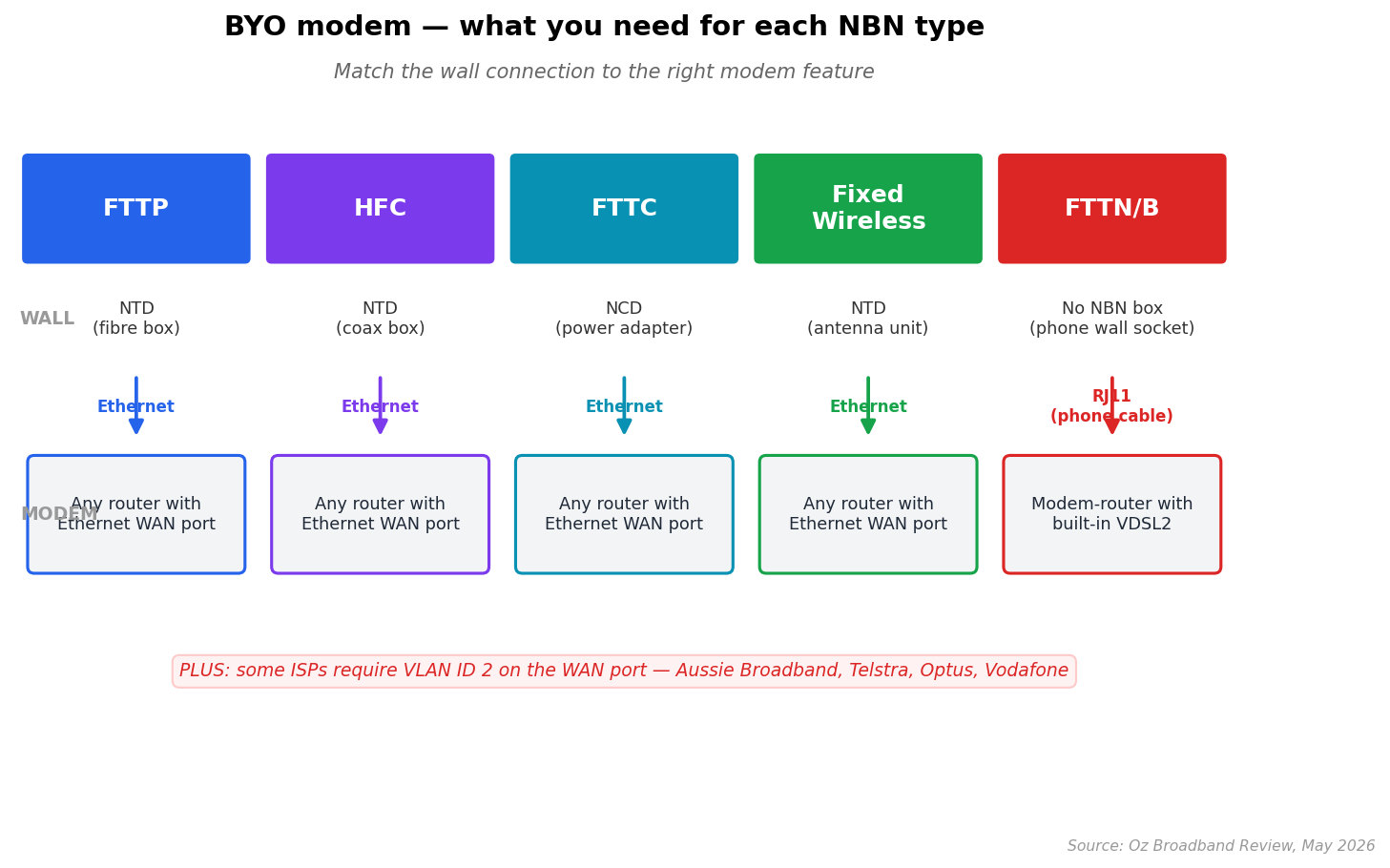
- For FTTP, HFC and FTTC: any modern modem/router with an Ethernet WAN port works. Plug the WAN port into the NBN connection box, set the connection mode to “PPPoE” or “DHCP” depending on your ISP, and you’re done.
- For FTTN and FTTB: you need a modem with a built-in VDSL2 modem (not just an Ethernet router). The phone-style cable from the wall plugs straight in.
- Some ISPs require VLAN tag 2 in the WAN settings. Aussie Broadband, Telstra, Optus and a few others; check your welcome email.
- Set up takes about 15 minutes once you know your connection type and ISP settings.
The rest of this guide walks through each step in detail, with the specific settings for the biggest Australian ISPs.
Why BYO modem at all?
Three reasons most people switch:
Cost. Provider-supplied modems cost $10-$15/month to rent, or $0 up front if you sign a 24-month contract. A decent BYO modem is $130-$250 once. Break even is around month 10-14.
Speed and Wi-Fi quality. Provider modems are generally cheap entry-level units (Sagemcom, NetComm, Huawei B535). They work but they’re not great. A mid-range BYO unit (TP-Link Archer AX55, ASUS RT-AX58U, Eero 6) gives you noticeably better Wi-Fi range and faster speeds in real world testing.
Control. You can configure port forwarding, set up VPN, run parental controls properly, set static IPs, segment your IoT devices on their own network. Most provider modems lock you out of these settings.
The reason most people don’t BYO: setup feels intimidating if you’ve never done it. It’s actually pretty straightforward once you know your NBN type.
What NBN connection do you have?
This is the first thing to sort, because it determines what modem you need.
| NBN type | What it looks like | What your modem needs |
|---|---|---|
| FTTP (Fibre to the Premises) | An NTD box on the wall with 4 yellow data ports + a fibre input | Any modem/router with an Ethernet WAN port |
| HFC (Hybrid Fibre Coax) | Small NTD box, coax cable from the wall + Ethernet out | Any modem/router with an Ethernet WAN port |
| FTTC (Fibre to the Curb) | Small NCD power adapter with phone cable in + Ethernet out | Any modem/router with an Ethernet WAN port |
| FTTN / FTTB (Fibre to the Node/Basement) | No NBN box, phone cable straight from wall | Modem with built-in VDSL2 modem (not just a router) |
| Fixed Wireless | Antenna on roof + indoor NTD with Ethernet out | Any modem/router with an Ethernet WAN port |
| Sky Muster | Satellite dish + indoor modem (NBN supplies it) | You generally can’t BYO. Sky Muster requires the specific Sky Muster modem |
If you don’t know your NBN type, check your address on the NBN Co address checker. It tells you what you’ve got.
Buying guide: what to look for in a BYO modem in 2026
Most decent Wi-Fi 6 routers (or modem-routers if you’re on FTTN/FTTB) will do the job. Things that actually matter:
For FTTP/HFC/FTTC/Fixed Wireless (Ethernet WAN)
- Wi-Fi 6 (802.11ax) at minimum. Wi-Fi 6E or Wi-Fi 7 if you want future-proofing. Wi-Fi 5 routers will work but you’ll bottleneck on speed if you’re on NBN 100 or above.
- 2.5 Gbps WAN port if you’re on NBN 1000 or NBN 2000. A 1 Gbps WAN port caps you at about 940 Mbps in practice.
- At least 4 LAN ports unless you have a separate switch.
- MU-MIMO and OFDMA. Both come standard with Wi-Fi 6, just check they’re listed.
- VLAN tagging support. Some ISPs (Aussie Broadband, Telstra, Optus) require VLAN ID 2 on the WAN. Most modern routers support this but the cheapest budget units sometimes don’t.
For FTTN/FTTB (built-in VDSL2 modem)
This narrows the field. You need an actual modem-router, not just a router. Good options under $250:
- TP-Link Archer VR1600v or VR2100v
- Netgear DM200 + a separate router (clunky but flexible)
- Billion BiPAC 8900AX-2400 (popular with the Whirlpool crowd)
- NetComm NF18ACV (the same one many ISPs supply, but unlocked)
Wi-Fi 6 modem-routers for FTTN are rarer and pricier. If you’re on FTTN expecting an upgrade to FTTP soon (NBN Co’s free FTTP upgrade program is rolling through suburbs), it might be worth buying a Wi-Fi 6 router now and a cheap VDSL2 bridge modem to tide you over.
For NBN 1000 or NBN 2000
You need a 2.5 Gbps WAN port at minimum (5 Gbps or 10 Gbps is overkill but future-proof). Check the spec sheet. Many “gigabit” routers only have 1 Gbps ports which won’t fully use NBN 1000.
Step-by-step setup
Same five steps regardless of connection type, with the per type differences called out:
Step 1: Find your ISP settings
Before you unplug anything, find your welcome email from your ISP. You need three things:
- Connection type. PPPoE, IPoE/DHCP, or Static IP. Most Australian ISPs use PPPoE for retail accounts.
- Username and password. For PPPoE, this is supplied by the ISP. Usually looks like
something@isp.com.auand a random password. - VLAN ID. Aussie Broadband, Telstra and Optus require VLAN ID 2 on the WAN port. Most other ISPs (TPG, iiNet, Superloop, Tangerine, More, Exetel) don’t need VLAN tagging.
If you can’t find the welcome email, log into your ISP’s customer portal. Modem settings are usually listed under “Account” or “Internet Setup”.
Step 2: Unbox your new modem and connect the physical cables
FTTP, HFC, FTTC, Fixed Wireless: Ethernet cable from the NBN box (NTD or NCD) into the WAN port on your new modem. Power up. The WAN port is usually labelled or coloured differently (often blue or yellow). It’s the one separate from the four LAN ports.
FTTN, FTTB: Phone cable (RJ11, the thin one with 4 wires) from the wall socket straight into the DSL port on your modem. Power up.
That’s the physical setup done. The modem will boot up in 1-2 minutes. Wait for the lights to settle before logging in.
Step 3: Log into the modem admin page
Plug your laptop into one of the modem’s LAN ports (or connect to its default Wi-Fi. The SSID and password are on a sticker underneath).
In a browser, go to one of these (whichever one loads):
192.168.0.1192.168.1.1192.168.20.1(some Billion units)routerlogin.net(Netgear)tplinkwifi.net(TP-Link)
Log in with the default username/password from the sticker (often admin/admin or admin/[random string]). Change the admin password immediately. This is a security hole most people leave open.
Step 4: Configure your internet connection
In the modem’s admin interface, find “Internet” or “WAN setup”. The settings vary slightly by brand but you’re filling in the same fields:
For PPPoE (most retail NBN):
- Connection type: PPPoE
- Username: from your ISP welcome email
- Password: from your ISP welcome email
- VLAN ID: 2 if Aussie Broadband / Telstra / Optus, otherwise blank
- MTU: 1492 (default for PPPoE, leave unless ISP says otherwise)
For DHCP/IPoE (some business and fibre accounts):
- Connection type: Dynamic IP or DHCP
- VLAN ID: 2 if required by ISP, otherwise blank
For Static IP:
- Connection type: Static IP
- IP, gateway, subnet, DNS: all from your ISP
Hit save. The modem will reconnect. Give it 30-60 seconds. The WAN or Internet light should turn solid green.
Step 5: Test your connection
Run a speed test from a wired device first, then a few Wi-Fi tests from around the house. Use our speed test tool. It doesn’t track you the way some of the bigger speed test sites do.
What you should see:
- Wired device: at or near your plan’s typical evening speed
- Wi-Fi 5m away: 80-90% of wired speed
- Wi-Fi at the back of the house: depends entirely on your floor plan and modem placement
If your speeds are noticeably below your plan’s typical evening number, there are usually three causes: a bad cable (try a different one), VLAN ID set wrong, or modem firmware out of date. Section below covers the troubleshooting.
Quick reference: connection settings by ISP
This is a snapshot of the major Australian NBN providers as of 2026. Always double-check against your welcome email since settings can change:
| ISP | Connection type | VLAN ID | Notes |
|---|---|---|---|
| Aussie Broadband | PPPoE | 2 | VLAN ID 2 mandatory |
| Telstra | PPPoE | 2 | VLAN ID 2 mandatory |
| Optus | DHCP/IPoE | 2 | VLAN ID 2 mandatory; no username needed |
| TPG | PPPoE | none | Standard PPPoE, no VLAN |
| iiNet | PPPoE | none | Standard PPPoE, no VLAN |
| Superloop | PPPoE | none | Standard PPPoE, no VLAN |
| Tangerine | PPPoE | none | Standard PPPoE |
| Mate / More / Belong | PPPoE | none | All Mobius-owned, same setup |
| Exetel | PPPoE | none | Standard PPPoE |
| Vodafone | DHCP/IPoE | 2 | VLAN ID 2; uses DHCP not PPPoE |
| Dodo | PPPoE | none | Standard PPPoE |
Now you’ve got your modem ready. Here are the cheapest plans to put it on
If you’re shopping around for an NBN plan to use with your new BYO modem, this is the live top 10 cheapest unlimited NBN plans from our affiliate database (same as the one on our cheapest NBN plans guide):
Troubleshooting common BYO modem problems
No WAN/Internet light at all. Check the physical connection first (Ethernet to NTD for FTTP/HFC/FTTC, phone cable for FTTN). Then check the modem’s WAN settings. Wrong connection type (PPPoE vs DHCP) is the most common culprit.
WAN light is on but no internet. Usually a PPPoE username/password typo, or VLAN ID is missing. If you’re on Aussie Broadband, Telstra or Optus and forgot the VLAN ID 2 setting, the modem will get a connection but no IP. Symptom is “limited connectivity” on every device.
Speeds are way below plan tier. Three things to check in order: (1) test wired before Wi-Fi to rule out Wi-Fi as the issue, (2) update the modem firmware, most brands push performance fixes every few months, (3) on FTTN/FTTB, the wall cable matters, a $5 generic phone cable can lose you 20+ Mbps on a marginal line. Use the shortest possible RJ11 cable straight to the wall socket.
Wi-Fi keeps dropping. Usually a 2.4 GHz band issue. Your neighbours’ networks are interfering. Most decent routers have a “smart connect” or band-steering feature; turn it on. Or split the 2.4 and 5 GHz networks into separate SSIDs and join the 5 GHz one for devices that support it.
Some sites work, others don’t. This is almost always MTU. Try lowering it from 1492 to 1452 in the PPPoE settings. Some Australian ISPs (Vodafone in particular) need a lower MTU than the default.
Phone service stopped working. If you had VoIP on your old provider modem and BYO’d a new one, the phone service won’t move automatically. You need to configure SIP credentials in the new modem (your ISP will provide them on request). Or use a separate VoIP adapter.
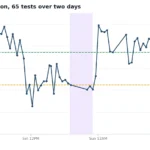
Test your line speed before and after
There’s no point chasing modem settings if your NBN line itself is the problem. Run a quick speed test on a wired connection before you start, and again after the swap, so you can compare.
Related reading
- How to connect to the NBN: the full process from signing up to working internet
- 10 cheapest unlimited NBN plans: to pair with your BYO modem
- Different types of NBN connections explained: if you’re still working out which NBN type you have
- What is the NBN box?: the box on the wall is the NTD/NCD, not your modem
- Why is my internet slow?: once everything’s set up but speeds aren’t right
FAQ
How can I tell if my modem works with NBN?
Check the spec sheet for the connection type. If it has an Ethernet WAN port, it works for FTTP, HFC, FTTC and fixed wireless. If it has a "DSL" or "VDSL" port (the small RJ11 phone style socket), it works for FTTN and FTTB. Most home routers from TP-Link, ASUS, Netgear, Eero and Google in 2026 have Ethernet WAN. Modem-routers with built-in VDSL2 are less common. Search specifically for "VDSL2 modem router Australia" to find compatible units.
Can I use any modem with NBN?
For FTTP/HFC/FTTC/fixed wireless, almost any router with an Ethernet WAN port. For FTTN/FTTB, you need VDSL2 support which narrows the field considerably. For Sky Muster satellite, you generally can’t BYO. NBN supplies the specific Sky Muster modem and you use your own router behind it.
Will a gaming router like the TP-Link Archer GE230 work on FTTN?
Not on its own. Gaming routers like the Archer GE230 have an Ethernet WAN port, not a built-in VDSL2 modem, so they work straight away on FTTP, HFC, FTTC and fixed wireless, but not on FTTN or FTTB. On FTTN you either need a modem with built-in VDSL2 (see the FTTN-specific units above), or you keep a separate VDSL2 modem in bridge mode and plug the Archer GE230 in behind it as the router and Wi-Fi. Check your NBN connection type first if you’re not sure; the “Which NBN type do you have” table further up covers it.
Do I need to tell my ISP I’m switching to BYO modem?
Not usually for setup, but you should ask if they bill separately for the modem. Some ISPs (Telstra, Optus) include modem rental as a line item; cancel that or you’ll keep paying for a modem you’ve returned.
What’s a "VLAN ID" and why does it matter?
VLAN (Virtual LAN) tagging lets the ISP’s network identify which traffic belongs to which customer over a shared connection. Aussie Broadband, Telstra and Optus use VLAN ID 2 on the WAN port. Without it, the modem connects but doesn’t get a working IP address. Most other ISPs don’t use VLAN tagging at all.
Is BYO modem worth it on NBN 25 or NBN 50?
The cost savings argument still holds (~$200 over two years versus a rented modem), but the Wi-Fi quality argument is weaker. A basic provider modem can usually handle NBN 50 to most of a normal sized house. The reason to BYO at lower tiers is control (port forwarding, parental controls, IoT segmentation), not raw speed.
What modems work with Aussie Broadband?
Any modem that supports PPPoE with VLAN ID 2 on the WAN port. Aussie’s own supported list includes the TP-Link Archer line, ASUS RT-AX series, Eero, Google Nest WiFi, Netgear Orbi, and most Wi-Fi 6 routers from the major brands. The official compatibility list on Aussie’s site is the safest bet to check.
Can I keep my old modem as a backup?
Yes, and it’s a good idea. If your new BYO modem dies, you can swap the cables back in 5 minutes and be online. Keep the ISP welcome email with the settings saved somewhere too.
How do I set up Wi-Fi mesh with a BYO setup?
Most mesh systems (Eero, Google Nest WiFi, ASUS AiMesh, TP-Link Deco) can act as both the BYO modem-router and the mesh backbone. The main unit plugs into the NBN box, the satellites pair wirelessly. For FTTN/FTTB you need a mesh system with at least one node that has a built-in VDSL2 modem. These are rare, so most FTTN BYO setups use a separate VDSL2 modem in bridge mode plus a mesh router behind it.
What happens if I move house with my BYO modem?
Take it with you. The modem is yours. At the new address, find out the new NBN type. If it’s the same (e.g. FTTP at both addresses), no setup needed beyond plugging in. If it’s different (e.g. moving from FTTN to FTTP), you may need to swap to a different modem type.
Are second-hand modems safe to use?
Hardware wise, yes. They don’t wear out. Always factory-reset before configuring (hold the reset button for 30 seconds with the modem powered on), and immediately update the firmware. Some ISP-locked modems (especially older Telstra units) won’t accept BYO settings and need to be reflashed with stock firmware first, which is a bigger undertaking.